Login
Once your school administration has integrated Dakora+ into your Moodle, you can log in on this website. Select “Other Moodle installation” from the drop-down menu and enter your local Moodle URL (e.g., “https://yourinstitution/moodle”). Then log in with the credentials for your local Moodle platform.
Inviting students via Dakora+
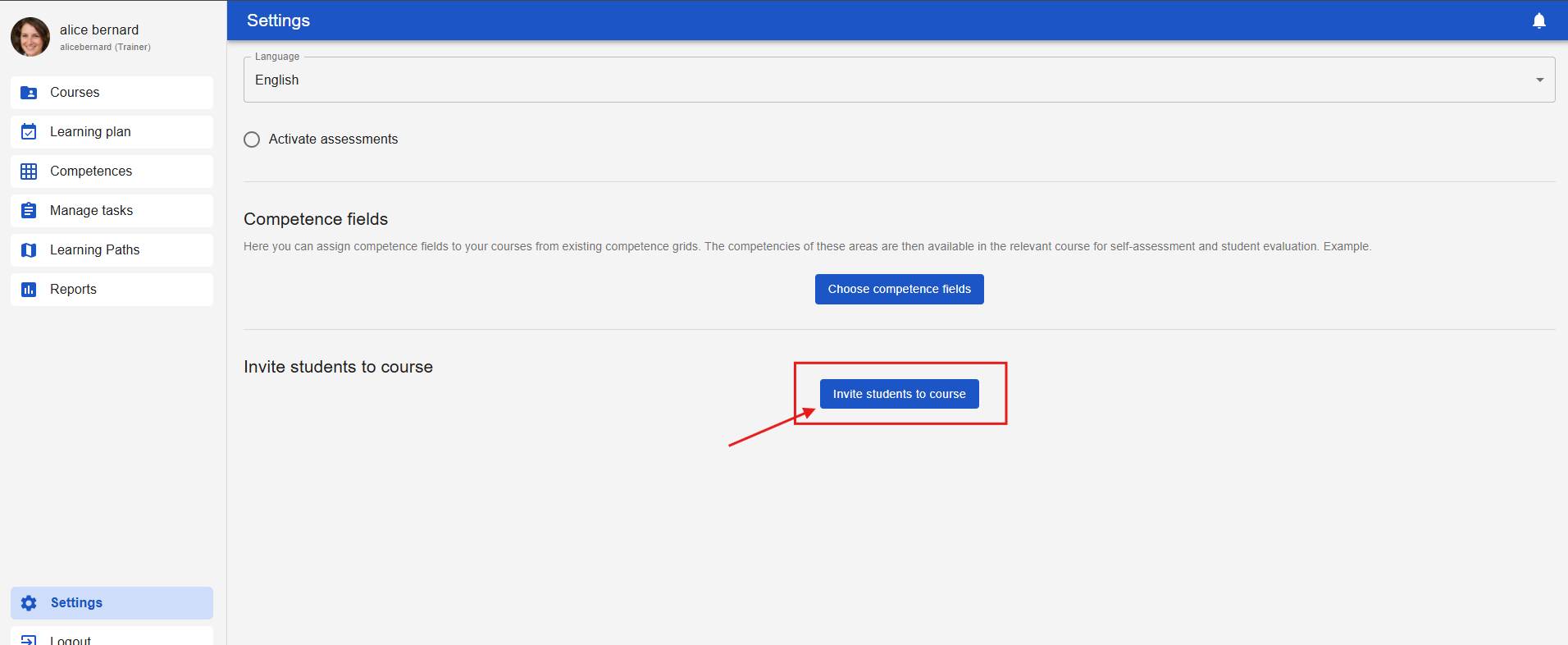
To invite learners to your course, click on the “Settings” tab on the left-hand side and then on the “Invite students to the course” button.
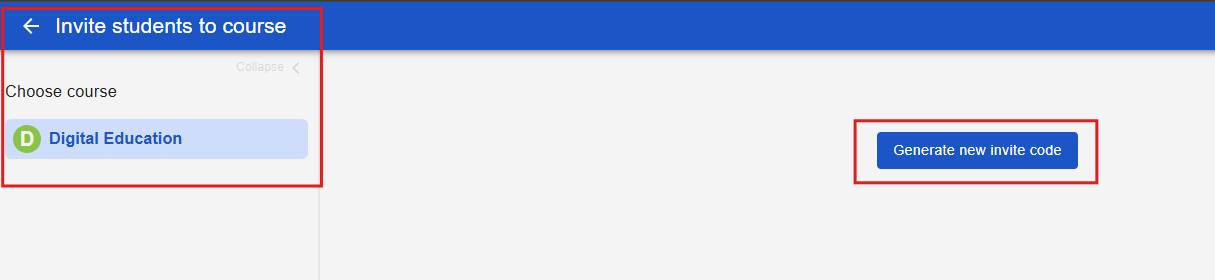
You will be given the option to select the course you want to invite people to. Then click on the “Generate new invite code” button.
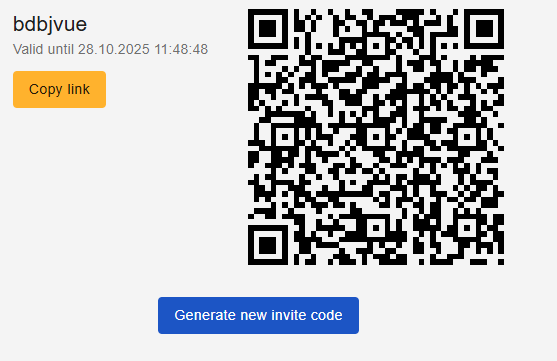
There are several ways to invite learners to the course. On the one hand, the QR code can be scanned to register, or the link can be copied and sent to the relevant learners. When they click on the link, they are automatically enrolled in the course.
Depending on the configuration, learners may already appear in the app. If learners have already been assigned to courses in Moodle, they will automatically appear in Dakora+ and do not need to be added to the app.